Factory Automation

Human Machine Interfaces MELHMI-GOT MELSOFT GT Works3

MELSOFT GT Works3

Professional designs. Maximized efficiency. Intuitive operations.
All made possible by GT Works3.

This integrated software is used to create professional screen designs for GOTs. Developed with the concepts of simplicity, sleekness, and userfriendliness in mind, this is a powerful tool that pushes boundaries and delivers endless design possibilities.

Engineering with Ease

Engineering with Ease
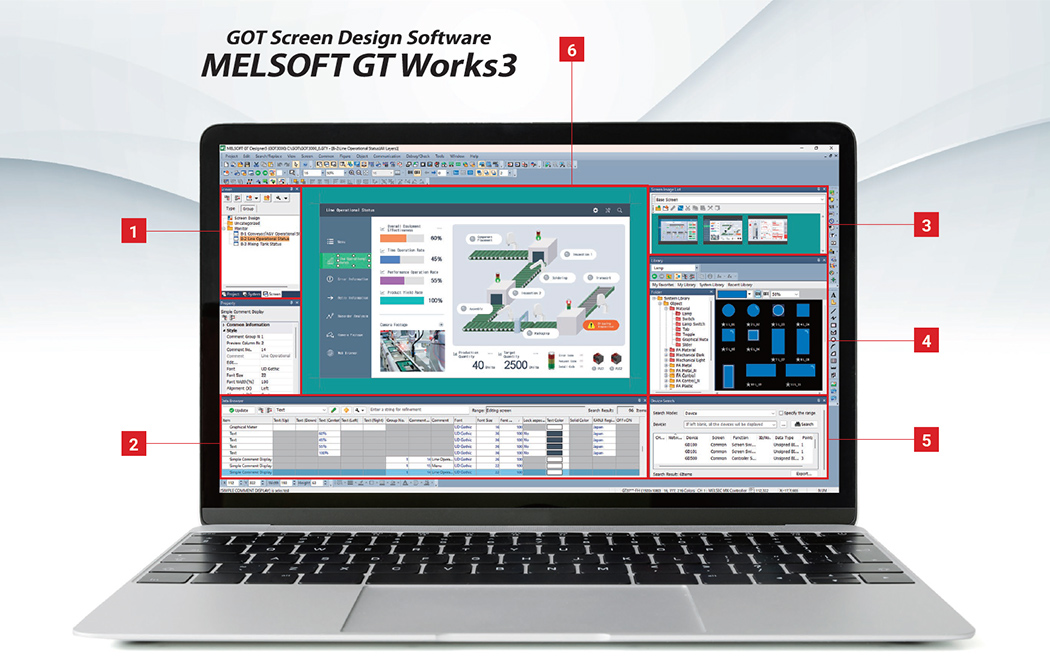
  • 1Work Tree

    Manage and configure for each screen, system, and project.

  • 2Data Browser

    Directly view and edit properties of multiple objects across the entire project.

  • 3Screen Image List

    View each screen as an image, making screen search simple.

  • 4Library

    Create professional screens using a wide variety of parts and frame animations.

  • 5Device Search

    Quickly search for the devices and labels in use.

  • 6Screen Editor

    Design efficiently with various functions that minimize man-hours in screen creation.

Screen Design

Choose from abundant and beautiful parts

UpgradedLibrary

  • NEWMany new parts in vector format have been added. Vector parts can be specified in full color, and their quality remains consistent even when zoomed in and out. Even if you enlarge the parts, the size of the project data will not change.

BeforeRaster format

NEWVector format

With the vector format, edges are displayed with clean lines regardless of size

With the vector format, edges are displayed with clean lines regardless of size

BeforeRaster format

NEWVector format

With the vector format, colors can be specified in full color

With the vector format, colors can be specified in full color

Design efficiently with batch editing

UpgradedData Browser

  • Various settings within the project can be displayed collectively and edited directly. This allows efficient review and modification of data, even if there are many screens or settings.
  • NEWBy changing and switching the display items of the data browser using presets, you can design efficiently. For example, you can switch to a screen-specific preset when editing screen settings, and to a text-specific preset when modifying text settings. Users can also create custom presets.
Data Browser

Enhanced copy function

UpgradedConsecutive Copy

  • Multiple figures and objects can be copied at once.
  • When copying, information such as device numbers can be incremented based on the original data, reducing the effort of reconfiguration.

[Increment-Supported Items]

  • Device Number
  • User ID
  • Comment Group No.
  • Move Destination ID
  • Comment No.
  • NEWArray Element Count
Consecutive Copy

Efficient scripting

NEWScript Block

A process can be divided into reusable components (blocks). By using these script blocks, development becomes more efficient.

Script:
A programming language similar to C language, capable of controlling the display of GOT.

Script Block

Debug

Debug from your desk even without GOT unit

UpgradedSimulator (GT Simulator3)

  • Operations of GOT can be simulated on a computer using the simulator (GT Simulator3).
  • By specifying the project of the controller to be integrated in advance in the GOT project, the simulator of the controller (GX Simulator3) will automatically start when you start the GOT simulator (GT Simulator3), allowing you to begin debugging immediately.
Simulator (GT Simulator3)

Reuse

Reuse to reduce design man-hours

Add-on projects (sample screens) ready for immediate use are provided, featuring designs with excellent visibility and usability.

Add-On Project for Connections
Servo amplifier connectionGOT Drive
Inverter connectionGOT Drive
Other Mitsubishi FA devices connection
Non-Mitsubishi FA devices connection
Add-On Project for Functions
Camera (live display, recording, playback)
Screen design examples (logging, graphs, alarms)

For the latest add-on projects, please contact your local sales office.

Reuse the project assets easily

Utilize Data

Project data for GOT3000 is reusable on a project or screen basis.

Utilize Data

Management

Manage projects easily

UpgradedScreen Tree

  • It is possible to display a list of created base screens, window screens, and mobile screens, and to create new ones or edit existing ones.
  • NEWGroup related screens together to keep the project organized.
  • NEWMultiple screen selection through mouse operation is supported. In group display, screen groups can be changed by drag and drop.

Display by screen types

Display by screen types

Display by switching tabs

Display by screen groups

Display by screen groups

Recommended parts for easily creating beautiful screens

NEWParts Library

The drawing software GT Designer3 features a variety of beautiful parts stored in its system library.

Parts Library
Examples of screen design utilizing new parts
  • ・Material

    Material
  • ・FA Material

    FA Material
  • ・Mechanical Dark

    Mechanical Dark
  • ・Mechanical Light

    Mechanical Light
Other new parts examples
  • ・Frame Animation*

    Frame Animation
    • *Animation files (PNG, APNG, GIF), in addition to frame animations stored in the library, can also be placed on the screen.
  • ・Icon_GOT3000

    Icon_GOT3000
  • ・Illustration_GOT3000

    Illustration_GOT3000
Full ColorFull Color [Some parts are fixed in color]

Fixed ColorFixed Color

Screen Configuration (GOT2000)

Screen Configuration (GOT2000)
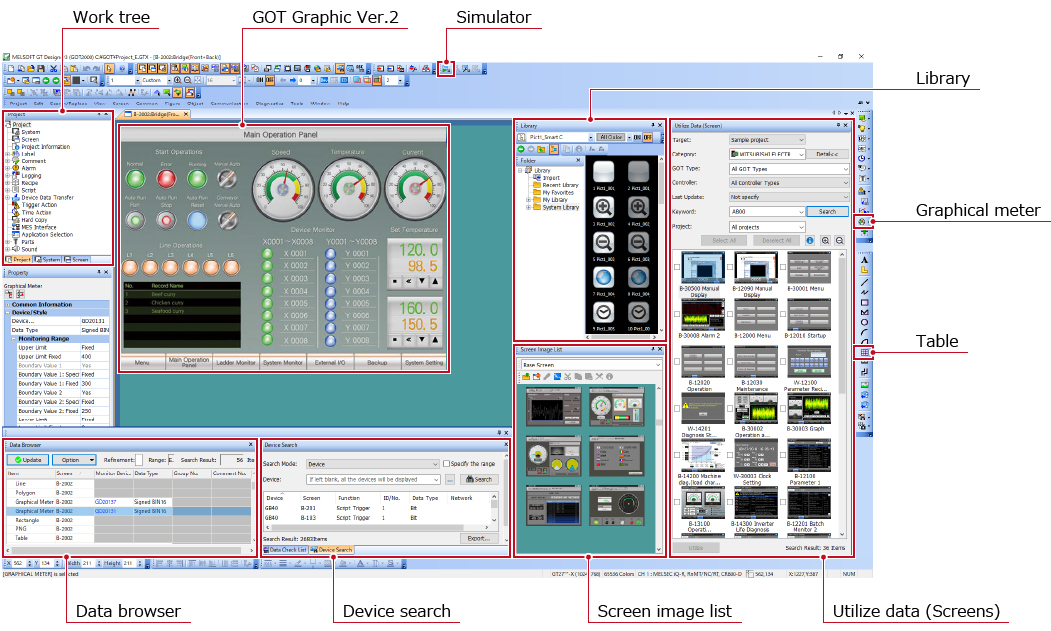
Work tree Easily manage project data
GOT Graphic Ver.2 Easily create stylish screens
Simulator Check operations with a single click!
Library Easily create stylish screens
Graphical meter Create stylish, clear meters
Table Easily create tables
Data browser Easily check the settings
Device search Quickly search devices and labels
Screen image list Quickly display screen thumbnails
Utilize data (Screens) Search by keywords and effectively use data